
Shipping is one of the most important parts of running a successful WooCommerce store. Customers want clear delivery options, reasonable shipping costs, and accurate information before completing checkout. For retailers, configuring shipping correctly helps protect profit margins while preventing unnecessary fulfillment problems.
WooCommerce includes several built-in tools for managing shipping rates and delivery options. Three of the most important are shipping zones, shipping classes, and shipping methods.
Although these settings work together, each serves a different purpose.
Shipping zones determine where customers are located. Shipping methods establish which delivery options are available to those customers. Shipping classes help retailers assign different shipping costs to different product types.
Understanding how these features interact makes it easier to configure accurate shipping charges, offer location-specific delivery options, and manage products with different shipping requirements.
For growing ecommerce businesses, these native WooCommerce features also create a foundation for more advanced shipping integrations, carrier rate shopping, and warehouse automation; or you can use an advanced WooCommerce shipping plugin to streamline your efforts.
Here’s how each setting works and how to configure them correctly.
“The post-purchase experience deserves a seat at the executive table because it affects both brand equity and margin. A better return process can reduce service volume while increasing customer confidence. Clearer shipping communication can lower inbound tickets while improving trust. Faster resolution can protect repeat purchases. Cleaner workflows can reduce stress on teams and make the business easier to scale.” Read Article on Forbes

What Are WooCommerce Shipping Zones, Classes, and Methods?
WooCommerce organizes its shipping configuration around three primary components. Each controls a different aspect of how shipping options are calculated and presented at checkout.
- Shipping zones define the geographical regions where particular shipping options are offered. A retailer might create separate zones for the continental United States, Alaska and Hawaii, Canada, and international destinations.
- Shipping methods determine the delivery choices available within those zones. WooCommerce includes built-in options for flat rate shipping, free shipping, and local pickup.
- Shipping classes group products with similar shipping requirements. Retailers can create classes for heavy, oversized, fragile, or standard products and use them to calculate different charges within a compatible shipping method.
The easiest way to understand the relationship is through three questions:
- Shipping zones: Where is the order being delivered?
- Shipping methods: Which delivery options can the customer choose?
- Shipping classes: Do the products require different shipping charges?
Consider a WooCommerce retailer selling clothing, furniture, and home accessories.
The store might establish a domestic shipping zone covering the United States. Within that zone, customers could choose between standard flat rate shipping and free shipping on qualifying orders.
Furniture could belong to an oversized shipping class with an additional shipping charge, while clothing and smaller accessories use a standard rate.
These settings work together to determine which options appear during checkout and how applicable shipping charges are calculated.

What Are WooCommerce Shipping Zones?
A shipping zone is a geographical region that determines which shipping methods are available to a customer. WooCommerce matches the customer’s shipping address to a configured zone and displays the shipping methods assigned to it.
Zones can cover entire countries, individual states, specific postal codes, or larger geographical regions. For example, a retailer based in the United States might establish the following zones:
| Shipping Zone | Geographic Coverage | Available Shipping Options |
| Local Delivery | Selected nearby ZIP codes | Local Pickup, Flat Rate |
| Continental United States | Eligible mainland states | Flat Rate, Free Shipping |
| Alaska and Hawaii | Alaska and Hawaii | Flat Rate |
| Canada | Canadian addresses | International Flat Rate |
| Rest of the World | All unmatched locations | No shipping methods |
The rates and options in this example are illustrative. Each merchant determines which destinations to serve and which methods to offer.
How WooCommerce Matches Customers to Shipping Zones
WooCommerce checks the customer’s shipping address against the configured zones.
The first matching zone determines which shipping methods are available.
This creates an important configuration rule: More specific shipping zones should appear before broader zones.
For example, a retailer offering special local delivery rates in Phoenix should place the Phoenix ZIP code zone above a general Arizona or United States zone.
Otherwise, the broader zone may match the customer before WooCommerce reaches the more specific one.
Each customer matches only one shipping zone, even when their address falls within several geographical regions.
How to Set Up Shipping Zones in WooCommerce
Setting up shipping zones and creating a shipping zone in WooCommerce is straightforward.
- Open the WordPress administration dashboard.
- Navigate to WooCommerce > Settings > Shipping > Shipping zones.
- Select Add zone.
- Enter a descriptive zone name.
- Choose the countries, states, or regions covered.
- Add postal code restrictions if more precise coverage is needed.
- Add the shipping methods available within the zone.
- Save the configuration.
Repeat the process for additional destinations.
After configuring multiple zones, review their order to ensure smaller geographic regions appear before broader ones.
What Is the Rest of the World Shipping Zone?
WooCommerce includes a default zone called Rest of the world. This zone applies when a customer’s shipping address doesn’t match another configured shipping zone.
Retailers can assign shipping methods to this zone if they want to offer delivery to additional destinations. Alternatively, leaving the zone without shipping methods prevents shipping options from being offered to addresses that don’t match another configured zone.
Merchants should review this setting carefully, especially when shipping internationally.
“In my experience, the most effective enterprise organizations are the ones that make it easy for people to understand what needs to happen next. This is because simplicity isn’t about removing capability. On the contrary, it’s about removing unnecessary friction.” Read Article on Forbes
What Are WooCommerce Shipping Methods?
Shipping methods are the delivery options customers can select during checkout.
WooCommerce includes three core shipping methods:
- Flat Rate Shipping
- Free Shipping
- Local Pickup
Merchants can configure different methods within their shipping zones to accommodate various customer needs.
Extensions and integrations may add additional shipping methods, including live carrier rates and specialized delivery options.
Flat Rate Shipping
Flat rate shipping lets merchants set predefined shipping charges.
A store might charge $8 for standard domestic delivery or $15 for another shipping option. Merchants can configure the cost as a fixed amount or calculate it using supported formulas and shipping classes.
Flat rate shipping is useful for retailers that prefer predictable customer-facing delivery charges. For example, an online apparel store could establish an $8 flat rate for orders delivered within the continental United States.
Customers would see that shipping charge during checkout, regardless of the actual carrier cost incurred when the order is fulfilled, unless additional pricing rules apply.
Free Shipping
Free shipping allows retailers to offer delivery without a customer-facing shipping charge. WooCommerce can make free shipping available based on specific conditions, including:
- No minimum purchase requirement.
- A valid free shipping coupon.
- A minimum order amount.
- A minimum order amount or an eligible coupon.
- A minimum order amount and an eligible coupon.
For example, a retailer might offer free shipping on orders totaling $75 or more.
This approach can encourage customers to add more products to their carts to qualify for free delivery. Retailers should calculate shipping expenses before setting free-shipping thresholds to avoid unnecessary profit-margin reductions.
Local Pickup
Local pickup allows customers to collect purchases from a physical store, warehouse, or designated pickup location instead of receiving delivery. This can be useful for retailers that serve local customers or operate both physical and online stores.
WooCommerce supports a legacy local pickup method associated with shipping zones and a newer local pickup experience designed for block-based checkout. The available configuration steps depend on which checkout experience the store uses.
Merchants should verify that their selected pickup implementation works correctly with their store’s checkout setup.
“The post-purchase experience shapes your brand just as much as what draws a customer to it before they buy. Branding or advertising begin to shape customer confidence, but the experience that follows checkout influences loyalty more.” Read Article on Fast Company

How to Add Shipping Methods to a WooCommerce Zone
Once a shipping zone exists, merchants can assign one or more methods to it.
Follow these steps:
- Navigate to WooCommerce > Settings > Shipping > Shipping zones.
- Select the zone you want to configure.
- Click Add shipping method.
- Choose an available method.
- Continue to the method’s configuration settings.
- Enter the required rate, eligibility rules, or other settings.
- Save the method.
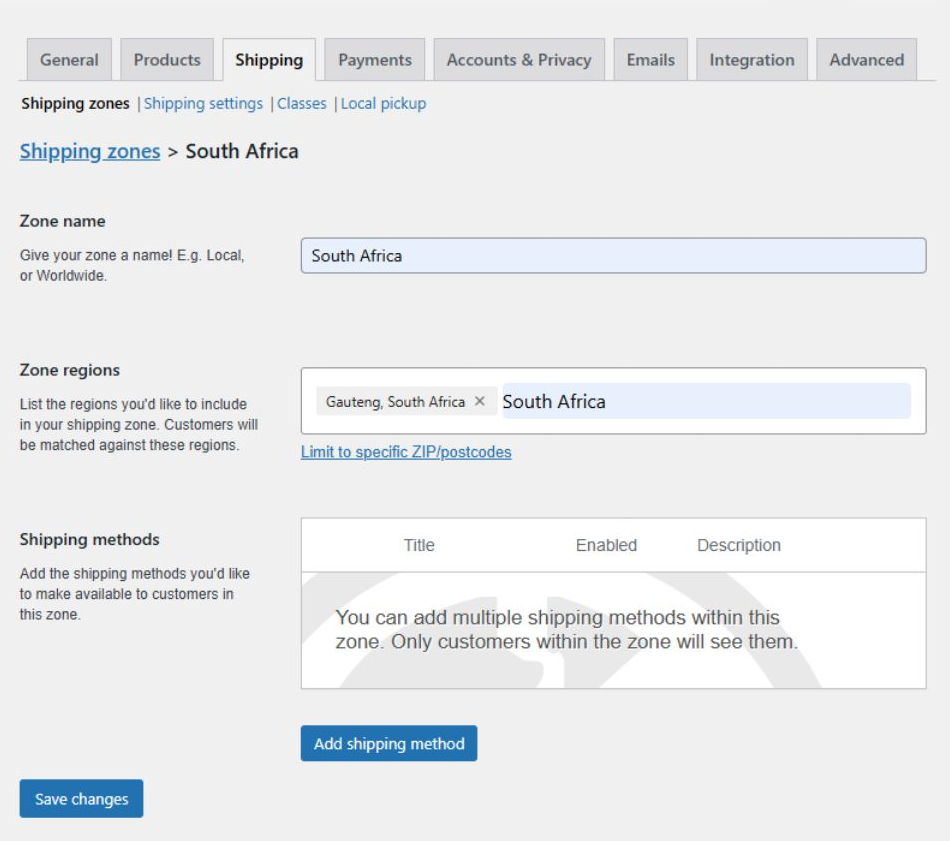
For example, a domestic shipping zone might include both flat rate shipping and free shipping. Customers who qualify for free shipping may see it alongside other enabled methods, depending on store settings.
WooCommerce also offers a setting to hide other shipping rates when free shipping is available. A single shipping zone can contain multiple shipping options, allowing customers to choose between available delivery methods.
What Are WooCommerce Shipping Classes?
Shipping classes let merchants group products by shipping characteristics.
Unlike shipping zones, which organize destinations, classes organize products.
A retailer might create shipping classes such as:
- Standard Products
- Heavy Products
- Oversized Products
- Fragile Products
- Specialty Packaging
You can use these classes with compatible shipping methods to calculate different shipping charges.
For example, a store selling home furnishings might charge one amount to ship decorative pillows and another amount to ship large furniture.
Assigning products to shipping classes lets you manage these pricing requirements without configuring individual shipping rates for every product.
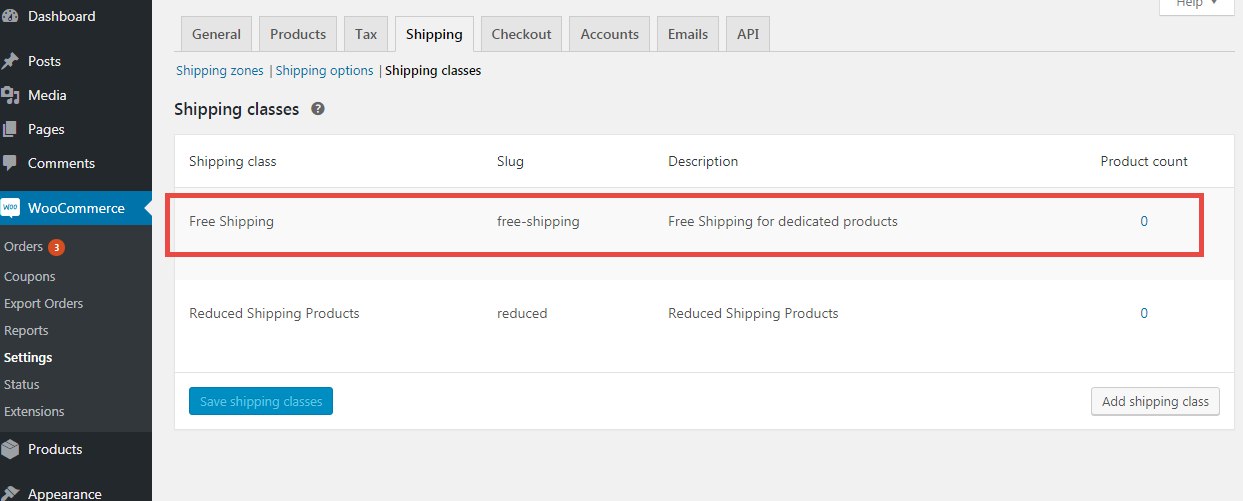
How to Create Shipping Classes in WooCommerce
To create a shipping class:
- Navigate to WooCommerce > Settings > Shipping > Classes.
- Select Add shipping class.
- Enter the shipping class name.
- Add a slug and description where applicable.
- Save the class.
Once created, the class can be assigned to individual products.

How to Assign Shipping Classes to Products
Shipping classes are assigned through product settings.
- Navigate to Products > All Products.
- Open the product you want to edit.
- Locate the shipping settings within the product data section.
- Select the appropriate shipping class.
- Update the product.
For variable products, you can also manage shipping class settings for individual variations when their shipping requirements differ.
For instance, a retailer selling both small and large equipment might use separate classes so oversized variations can receive different shipping charges.
Do Shipping Classes Automatically Change Shipping Rates?
No. Creating a shipping class doesn’t automatically change the shipping charges customers see.
The class must be connected to a compatible shipping method, such as WooCommerce Flat Rate Shipping, with appropriate shipping class costs configured.
This is one of the most common sources of confusion for merchants setting up WooCommerce shipping.
Shipping classes categorize products. Shipping methods determine how those categories affect customer-facing rates.
“System failure often shows up in other ways. For example, a customer service employee may not be able to answer a basic question without opening four systems and four tabs. The warehouse team may be unable to reach the right person. Or a shipment delay can create five internal messages to five different people, each with multiple support tickets attached.” Read Article on Fast Company
How WooCommerce Shipping Classes and Flat Rates Work Together
Shipping classes become especially useful when combined with WooCommerce’s flat rate shipping method.
Suppose an online retailer sells three types of products:
| Product Type | Shipping Class | Example Class Cost |
| T-Shirts and Accessories | Standard | $5 |
| Small Appliances | Heavy | $12 |
| Large Furniture | Oversized | $35 |
The retailer can assign products to these classes and configure corresponding costs in a flat-rate shipping method.
When a customer adds products to the cart, WooCommerce calculates the shipping charge according to the configured class costs and calculation type.
Per-Class Shipping Calculation
The per-class calculation adds the applicable shipping charges for the different classes represented in the cart.
For example:
- Standard product: $5
- Heavy product: $12
- Total shipping class charges: $17
This can be useful when products have separate packing or shipping requirements.
Per-Order Shipping Calculation
The per-order calculation applies the most expensive applicable shipping class cost rather than adding every class cost together.
Using the previous example, the shipping class charge would be $12 instead of $17.
These examples assume a zero base rate and fixed class costs. Additional flat rate charges or formulas can change the final amount.
Which Calculation Type Should You Use?
- Per-class calculations may make sense when product categories create separate fulfillment expenses.
- Per-order calculations may be more suitable when products can be packaged together, and the merchant wants to avoid stacking class charges.
- The better option depends on the actual packing requirements and shipping cost structure.
Retailers should test mixed-product carts to confirm that the final checkout charges reflect their intended pricing strategy.
How to Configure WooCommerce Shipping Class Costs
After creating shipping classes, merchants can assign their costs through a flat rate shipping method.
- Navigate to WooCommerce > Settings > Shipping > Shipping zones.
- Edit the appropriate shipping zone.
- Open the relevant flat rate shipping method.
- Locate the shipping class cost fields.
- Enter the desired charge for each class.
- Configure the cost for products without a shipping class, if needed.
- Select the calculation type.
- Save the changes.
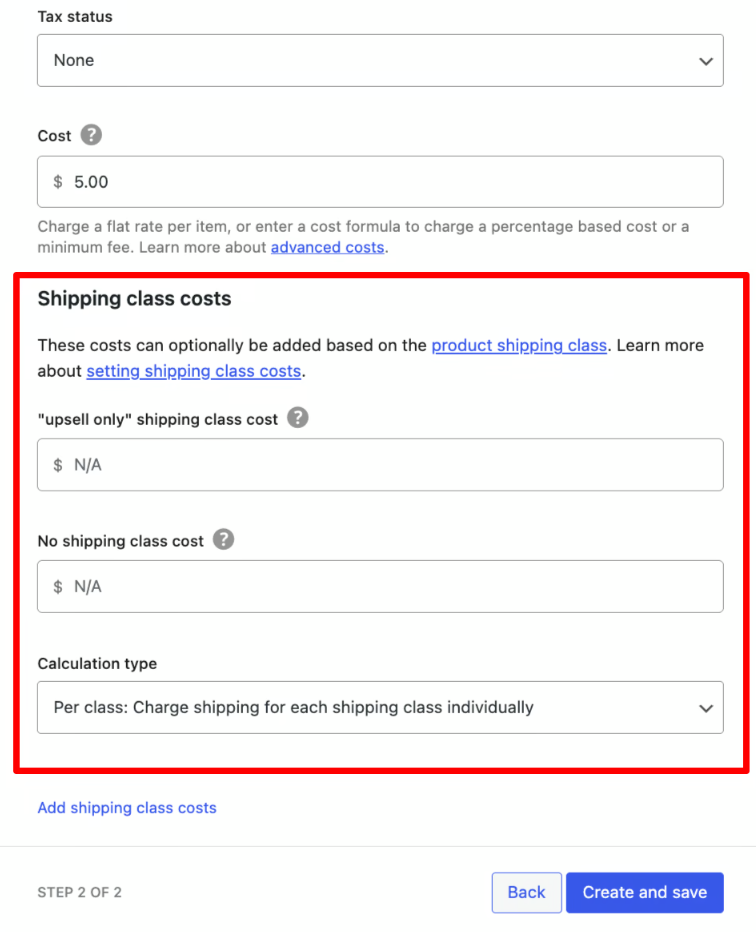
For example, a retailer could establish a $5 standard shipping charge and additional class charges for heavy or oversized items.
The resulting customer-facing rate depends on the base cost, class costs, calculation type, and any formulas used.
Test several shopping cart combinations before making the configuration available to customers.
“Customers don’t separate departments. They don’t care whether a delay came from the carrier, the warehouse, the support team or the return platform. They only know whether the brand made the experience easy or painful.” Read Article on Forbes
Can WooCommerce Calculate Shipping Based on Weight or Dimensions?
WooCommerce includes product weight and dimension fields, but its built-in shipping methods don’t automatically provide full carrier-based shipping calculations using those values. For example, adding a product weight of 10 pounds doesn’t automatically cause WooCommerce’s standard flat rate method to retrieve a live UPS or FedEx rate.
Merchants can create shipping classes and flat rate formulas to handle certain pricing requirements, but more complex calculations generally require additional shipping functionality. Weight-based, dimensional, and live carrier rate calculations can be supported through compatible extensions and shipping integrations.
This becomes increasingly useful for businesses shipping products that vary considerably in size or weight. An electronics retailer might sell lightweight accessories alongside bulky equipment. A single fixed rate may not reflect the actual shipping expense for both categories.
More advanced shipping tools can help merchants evaluate package characteristics and carrier services when making shipping decisions.
Common WooCommerce Shipping Setup Mistakes
Even relatively simple shipping configurations can produce unexpected checkout results. Understanding the most frequent problems can help merchants avoid customer frustration and unnecessary shipping expenses.
Shipping Zones Are Ordered Incorrectly
WooCommerce uses the first matching shipping zone. If a broad United States zone appears above a specific local ZIP code zone, customers in that ZIP code may receive the broader zone’s shipping options.
Solution: Arrange zones from the most specific geographical region to the broadest.
A Shipping Zone Has No Available Methods
A customer can match a shipping zone without having an available shipping method. This may prevent them from completing checkout for products that require shipping.
Solution: Review the enabled methods within each intended service area.
Shipping Classes Have No Associated Costs
Creating a heavy or oversized shipping class doesn’t automatically add a shipping surcharge.
Solution: Configure the relevant shipping class costs within the appropriate flat rate shipping method.
Free Shipping Appears Unexpectedly
Incorrect free shipping conditions can cause customers to qualify for a shipping offer the retailer didn’t intend.
Solution: Review minimum purchase thresholds, coupon eligibility, and free shipping settings.
Shipping Charges Don’t Match Fulfillment Costs
Flat-rate shipping simplifies checkout, but it doesn’t guarantee the customer-facing amount matches the retailer’s actual carrier expense.
Solution: Compare collected shipping charges with fulfillment expenses, and revise pricing rules as needed.
Mixed Carts Produce Unexpected Rates
Orders containing products from multiple shipping classes may generate higher or lower shipping totals than expected.
Solution: Review whether the flat rate method uses per-class or per-order calculations and test representative product combinations.
How to Test WooCommerce Shipping Settings Before Going Live
Testing should be part of every shipping configuration update. A retailer may configure shipping zones and classes correctly in isolation but encounter unexpected results when customers purchase several products together.
Use the following checklist:
- Test a shipping address within each configured zone.
- Verify that addresses outside supported areas receive the intended message or options.
- Confirm that flat rate charges appear correctly.
- Test free shipping eligibility above and below the minimum order threshold.
- Add products from different shipping classes to the same cart.
- Check the calculation for products without shipping classes.
- Verify local pickup availability where applicable.
- Test checkout using different postal codes.
- Confirm that installed shipping extensions don’t create conflicting options.
- Review shipping charges on both desktop and mobile checkout experiences.
WooCommerce also includes a shipping debug setting that can help identify the shipping zone matched to a customer’s address. After testing, disable debug mode so technical information isn’t unnecessarily displayed during normal customer checkout.
When Should WooCommerce Stores Use Advanced Shipping Software?
WooCommerce’s built-in shipping settings work well for stores that need straightforward geographic rates and delivery options.
A merchant selling a limited range of products through a single storefront may be able to manage customer-facing shipping charges using zones, methods, and classes alone.
The requirements change as order volume grows. Retailers may need to process hundreds of shipments daily, compare actual carrier charges, apply sophisticated shipping rules, and synchronize fulfillment across multiple sales channels.
Native shipping settings determine what customers are charged or offered during checkout. They don’t provide every capability needed to manage a high-volume warehouse.
Growing WooCommerce retailers may benefit from additional software that supports:
- Multi-carrier shipping across USPS, UPS, FedEx, and DHL.
- Carrier rate shopping.
- Automated shipping service selection.
- Batch shipping label printing.
- Barcode verification and scan-to-ship workflows.
- Centralized order processing across multiple sales channels.
- Warehouse equipment connections.
- Shipment tracking and analytics.
- Multi-warehouse fulfillment.
These capabilities complement a retailer’s checkout shipping configuration rather than replacing the need to understand it.
How ReadyShipper by ReadyCloud Supports WooCommerce Fulfillment
ReadyShipper by ReadyCloud is multi-carrier WooCommerce shipping software for high-volume WooCommerce stores selling across multiple channels.
While WooCommerce shipping zones, classes, and methods help merchants establish their checkout shipping structure, ReadyShipper supports the operational work of fulfilling customer orders.
It connects with WooCommerce to synchronize orders and provides tools for carrier rate shopping, batch label printing, barcode verification, and automated shipping rules.
Compare Carrier Rates With Rate Genie
ReadyShipper includes Rate Genie, which compares eligible shipping services across supported carriers.
Merchants can evaluate shipping rates from providers such as USPS, UPS, FedEx, and DHL based on their shipment requirements.
The platform also supports merchants’ existing carrier accounts, including multiple accounts with the same carrier, without adding fees to those accounts through ReadyShipper.
Its direct USPS integration provides discounted USPS rates.
Automate Shipping Decisions
ReadyShipper supports shipping automation rules that help retailers reduce manual carrier and service selection.
Instead of having employees evaluate every shipment individually, predefined rules can handle recurring decisions while flagging orders that need extra attention.
Print Shipping Labels in Batches
Batch label printing helps warehouse teams process multiple orders together.
This is especially useful during high-volume shipping periods, when creating labels individually would slow fulfillment.
Improve Shipping Accuracy With Barcode Scanning
ReadyShipper includes scan-to-verify and scan-to-ship capabilities.
These workflows help employees confirm that orders contain the correct products before shipments leave the warehouse.
Connect Shipping With the Post-Purchase Experience
ReadyShipper also works alongside the broader ReadyCloud suite.
Action Alerts helps retailers send branded shipping and tracking communications, while ReadyReturns supports returns and exchanges.
This gives growing WooCommerce merchants an opportunity to connect shipping operations with customer communication and post-purchase service.
Simplify WooCommerce Shipping With ReadyShipper by ReadyCloud
WooCommerce shipping zones, classes, and methods help you configure checkout rates, but growing ecommerce stores need more control over fulfillment. ReadyShipper by ReadyCloud is multi-carrier shipping software built for high-volume WooCommerce stores, supporting USPS, UPS, FedEx, and DHL shipping.
Automatically sync orders, compare carrier rates with Rate Genie, batch-print up to 180 shipping labels per minute, and reduce manual work with automated shipping rules and scan-to-ship workflows. Pair ReadyShipper with the ReadyCloud suite for branded tracking updates, easier returns, and a better post-purchase experience.
Explore ReadyCloud’s WooCommerce shipping integration to see how ReadyShipper can help your team ship faster, reduce shipping costs, and manage fulfillment as order volume grows.
Frequently Asked Questions About WooCommerce Shipping
What Is the Difference Between WooCommerce Shipping Zones and Shipping Classes?
Shipping zones define geographic delivery areas, while shipping classes group products by shipping characteristics. Zones determine which shipping methods are available to customers, and classes can affect the costs calculated within compatible methods.
What Are the Three Default WooCommerce Shipping Methods?
WooCommerce includes Flat Rate Shipping, Free Shipping, and Local Pickup. The local pickup configuration differs depending on whether a store uses classic checkout functionality or the newer block-based checkout experience.
Can I Create Multiple Shipping Zones in WooCommerce?
Yes. WooCommerce allows merchants to create multiple zones covering countries, states, regions, or specific postal codes. Each customer is matched to the first applicable zone in the configured order.
Can I Assign Different Shipping Rates to Different Products?
Yes. Merchants can create shipping classes and configure different class costs within a compatible method such as Flat Rate Shipping.
Why Isn’t My WooCommerce Shipping Class Working?
A shipping class alone doesn’t create a shipping rate. The class must be assigned to products and its cost configured within a compatible shipping method. Merchants should also verify the calculation type and base shipping cost.
Does WooCommerce Automatically Calculate UPS and FedEx Shipping Rates?
Not through its built-in flat-rate settings. Live carrier calculations require compatible shipping extensions or integrations.
Can WooCommerce Offer Free Shipping Over a Certain Amount?
Yes. WooCommerce lets merchants configure free shipping based on a minimum order value, an eligible coupon, or a combination of conditions.
Can WooCommerce Charge Different Shipping Rates by ZIP Code?
Yes. Merchants can create shipping zones limited to specific postal codes or supported postal code patterns, then assign the appropriate shipping methods to those zones.
How Do I Set Different Shipping Prices for Heavy Products?
Create a shipping class for heavy products, assign it to the relevant products, and configure a corresponding shipping class cost within the flat rate shipping method.
Do I Need Shipping Software Beyond WooCommerce’s Built-In Settings?
Not every retailer does. Stores with straightforward shipping requirements may find the built-in settings sufficient for checkout rates. Businesses that need live carrier rates, advanced automation, batch label printing, or multichannel fulfillment may benefit from additional shipping software.
Build a Smarter WooCommerce Shipping Strategy
Configuring shipping correctly helps ecommerce retailers provide more predictable delivery options while maintaining better control over fulfillment costs.
Shipping zones determine where products can be delivered. Shipping methods establish which options customers can choose. Shipping classes let you apply different charges to products with different shipping requirements.
Together, these features provide the foundation for managing WooCommerce checkout shipping.
As businesses grow, more advanced shipping needs may require functionality beyond basic geographic rates and product classifications.
ReadyShipper by ReadyCloud helps WooCommerce merchants extend their shipping operations with multi-carrier rate shopping, batch label printing, automated shipping rules, and barcode-assisted fulfillment.
Explore ReadyShipper’s WooCommerce shipping integration to see how connected shipping software can help your business manage fulfillment more efficiently and deliver a better post-checkout experience.